Occasionally, there may be issues where a course video may freeze, get stuck, and even reload by itself without warning. Here are some tips for common causes of this issue, as well as recommendations on how to prevent it from happening.
Common Causes
- Slower and/or weak internet connection can interfere with playback, causing jitters or even connection issues to the servers.
- Browser cache and/or outdated browser version can cause issue properly connecting to the server, causing disruption.
Solutions
1) Browser Issues
- Closing out your browser entirely and restarting it may provide a refresh needed to allow proper connection.
- Clearing your browser's cache can free up memory, and allow for the browser to have more space to better prioritize your courses connection and playback. (Below are instructions on how to delete cache for a number of popular browsers.)
- Updating your browser may be necessary to ensure it is running on the latest software update to ensure the most up to date compatibility.
- Clearing additional ongoing tabs can be helpful, as it will also free up additional memory and allow your browser to run smoother without splitting focus between too many websites at once.
- If these solutions don't render positive results, switching to another browser may be necessary.
2) Internet Connection
- Consider testing your internet speed at https://www.speedtest.net/ to confirm if internet speed may be hindering your video playback. Learnworlds recommends an internet speed of at least 1.2 Mbps (megabits per second) for standard definition playback, and up to a minimum of 11 Mbps for 4k playback. If your internet speed is below the minimum, it could be hindering smooth playback. A potential solution would be to try using a direct wired connection to you internet modem or wireless router with an ethernet cable, as this will provide a stronger connection than a wireless one.
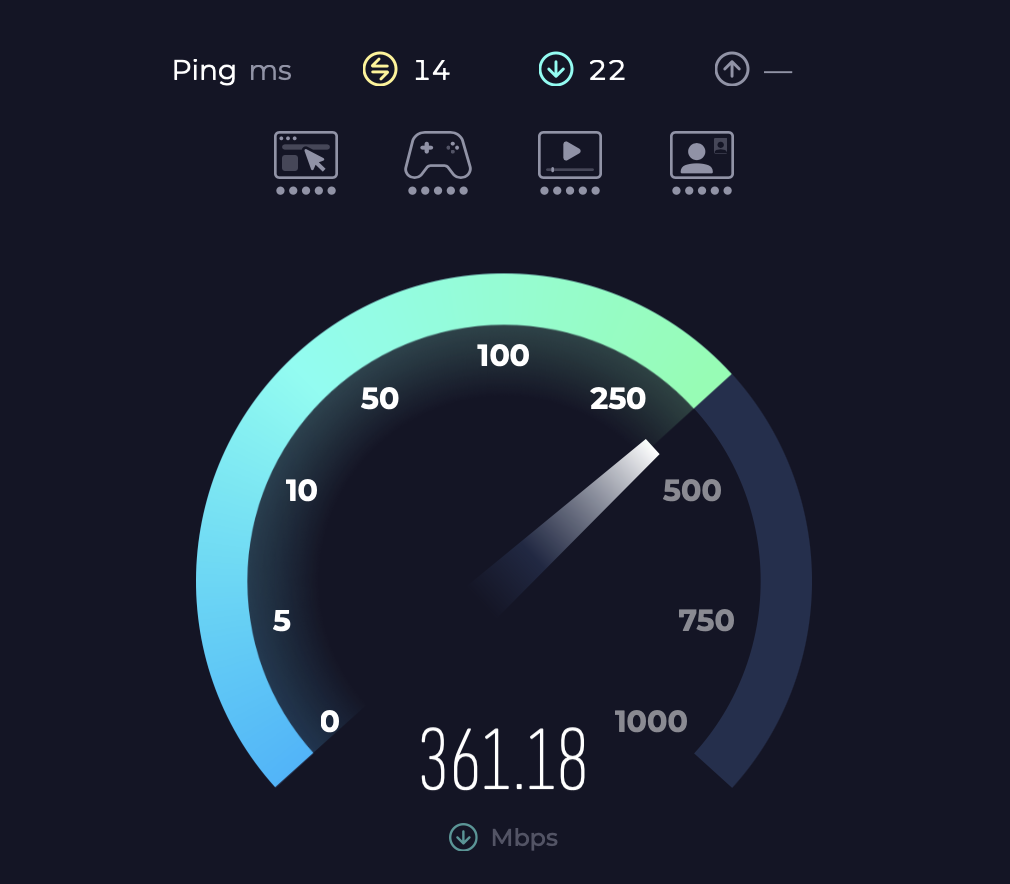
Internet download and upload speeds will be labeled as Mbps which stands for Megabits Per Second.
3) Forcing a Specific Video Quality
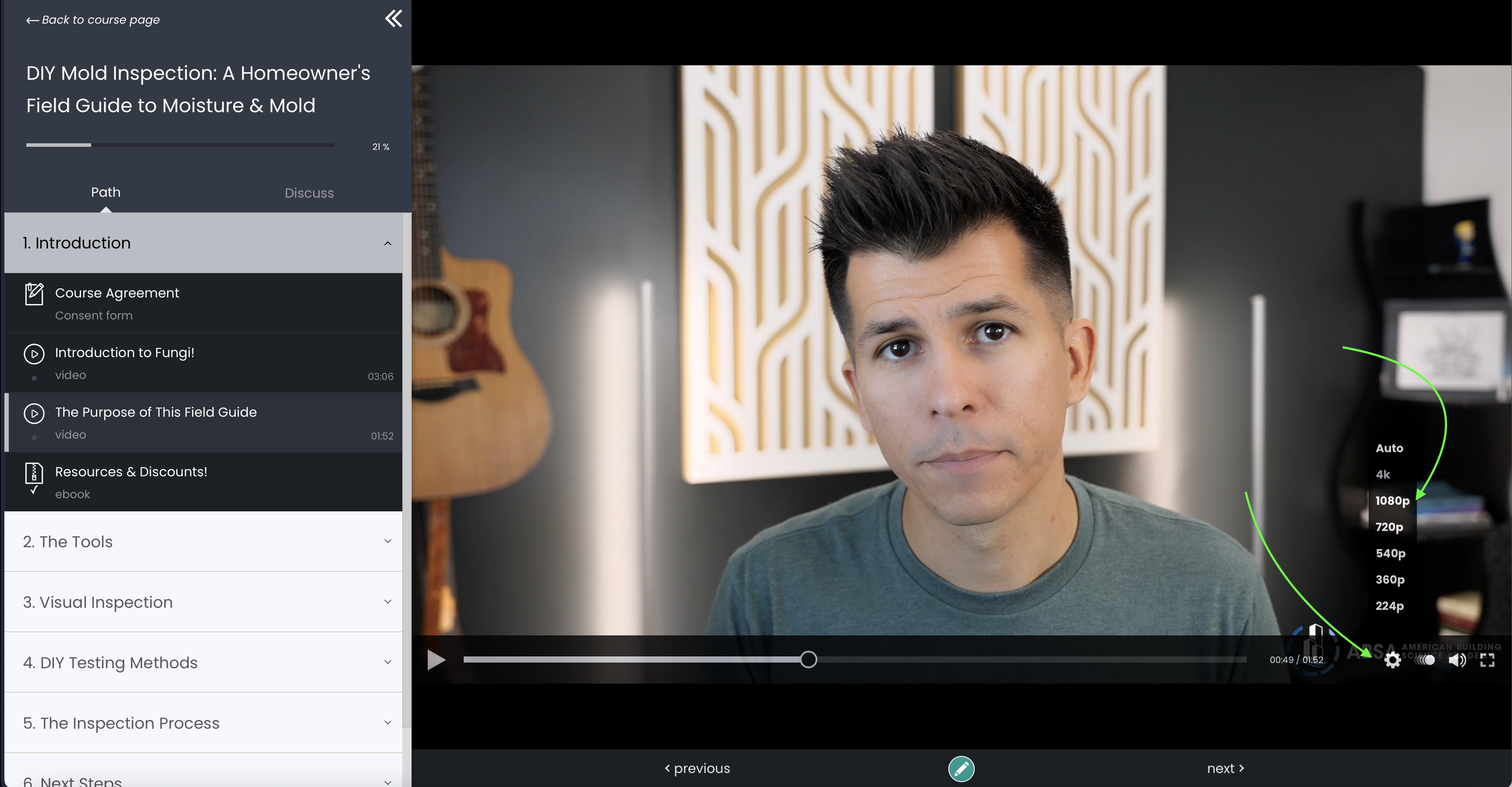
- By default, video quality is set to "Auto". Instead, try selecting a lower quality, such as 1080p. This will prevent the course from automatically trying to force a high resolution, which may face connection issues if the internet speed is lower.
Still Having Issues with Videos Freezing and Reloading?
If none of the above worked, we’re here to help. Please click here to contact our support team and include:
- The course and video(s) with which you are experiencing these issue
- A brief description of the problem
- The device and browser you are using
Was this article helpful?
That’s Great!
Thank you for your feedback
Sorry! We couldn't be helpful
Thank you for your feedback
Feedback sent
We appreciate your effort and will try to fix the article